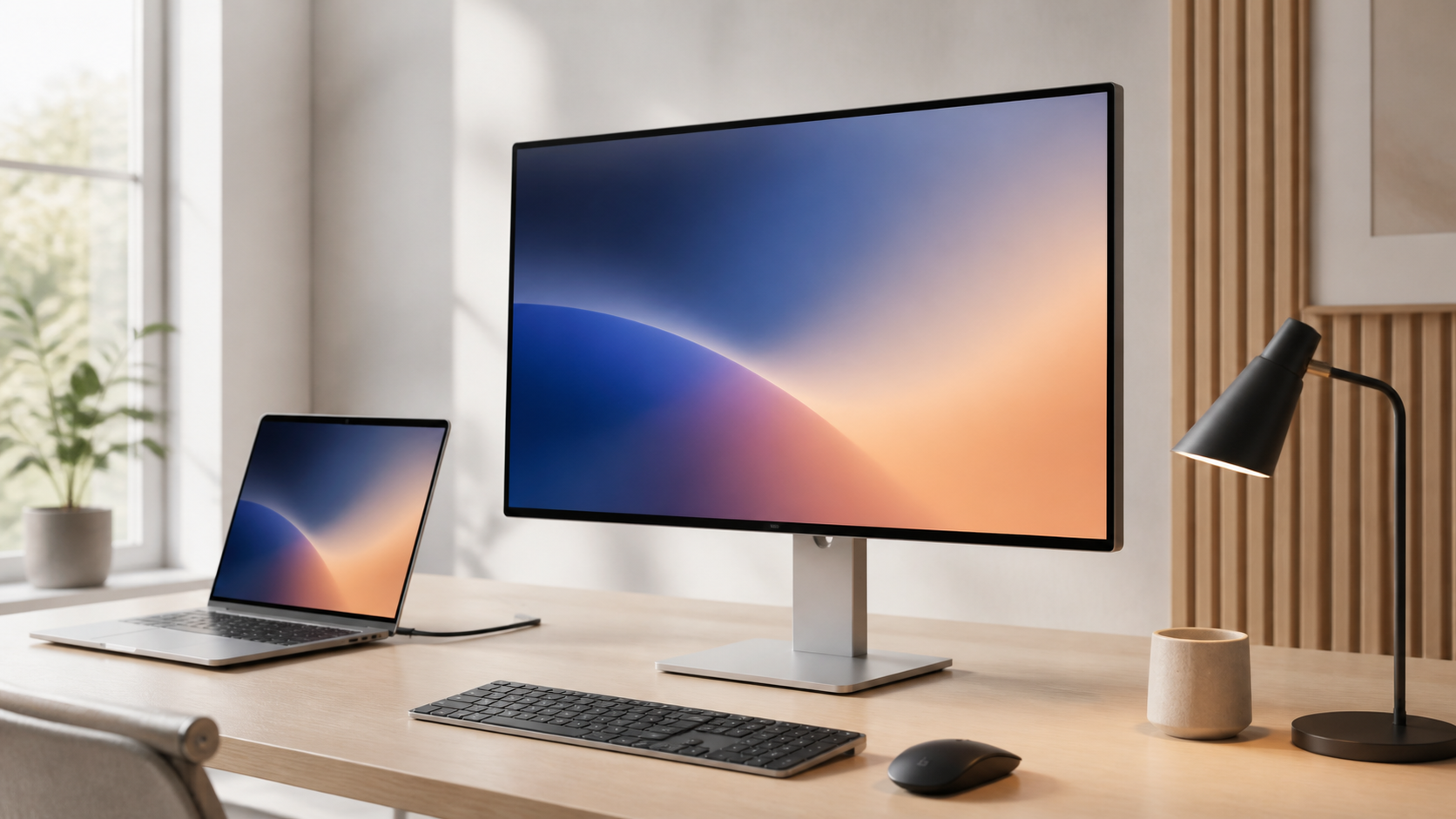
A good monitor should make the hours you spend looking at it easier, not give you another spec sheet to manage. For most people working from a laptop or desktop, the Dell S2725QC is the sensible place to start: it combines a sharp 27-inch 4K IPS panel, a fully adjustable stand, USB-C laptop charging, a useful USB hub, and a 120Hz refresh rate. Its 65-watt USB-C charging is enough for many everyday laptops, although it is not the right answer for a power-hungry workstation. If your work depends on color decisions, the BenQ PD2706U makes a stronger case with its color modes, 90-watt USB-C connection, KVM switch, and included controller. For a desktop gamer who values motion and dark-room contrast above 4K text sharpness, the LG 27GS95QE-B is the specialist choice: a 27-inch OLED with a 240Hz, 1440p panel.
Those are three different jobs, and that distinction matters more than a single “best monitor” label. A monitor for spreadsheets, a display for photo work, and a screen for competitive games should not be judged by the same priorities. Start with the computer you own, the distance at which you sit, the work you do most often, and whether you need one cable to handle video, data, and charging. Then choose the panel that fits that routine.
Our picks at a glance
| Pick | Best for | Why it fits | Watch out for |
|---|---|---|---|
| Dell S2725QC | Most desks and mixed work | 27-inch 4K IPS, 120Hz, USB-C with up to 65W charging, USB ports, and an adjustable stand | One-year limited hardware warranty; 65W may not replace every high-power laptop charger |
| BenQ PD2706U | Design and color-managed creative work | 4K IPS, wide color coverage, factory calibration report, 90W USB-C, KVM, and a hardware controller | 60Hz refresh rate and a higher price than a general-use display |
| LG 27GS95QE-B | Fast PC and console gaming | 1440p OLED, up to 240Hz, 0.03ms response time, HDMI 2.1, G-SYNC compatibility, and FreeSync Premium Pro | Not 4K, and OLED is a poor fit for people who keep static work windows on-screen all day |
The Dell S2725QC is the easy recommendation for most people
Get the Dell S2725QC on Amazon if you want one monitor that can cover ordinary office work, code, browsing, streaming, and casual games without making your desk more complicated. Its 27-inch, 3840-by-2160 IPS panel has the pixel density that makes text look crisp at a normal desk distance. At this size, 4K is more useful than it sounds: it gives you room to arrange two readable documents side by side, crop a photo without zooming out of its useful size, or keep a video call visible beside your work.
The S2725QC also avoids a common false choice. Many affordable 4K displays are stuck at 60Hz, which is perfectly usable but makes pointer movement and scrolling look less settled next to a modern laptop display. Dell rates this model for up to 120Hz at 4K. That does not turn it into a dedicated gaming monitor, but it makes daily interaction feel more immediate. AMD FreeSync Premium support is useful for compatible games, while the IPS panel is a better all-day text and document choice than an OLED for most people.
Connection flexibility is its strongest practical feature. The upstream USB-C port carries DisplayPort video and can provide up to 65 watts of power. Dell also includes a USB-C-to-C cable rated for 100 watts and 10Gbps. A laptop that accepts video over USB-C can therefore sit on the desk with one cable running to the monitor; the monitor’s downstream USB-C and USB-A ports can handle simple desk peripherals. It also has two HDMI ports, which makes switching among a personal laptop, work laptop, console, or small desktop less annoying.
The stand adjusts for height, tilt, swivel, and pivot. This is easy to dismiss in a product listing and hard to replace later. A fixed stand leaves you buying books, a riser, or an arm just to get the top of the screen into a reasonable position. The Dell is also VESA compatible if you later decide to use an arm. Built-in speakers are present, but treat them as convenience audio for a meeting or a short video, not as a reason to skip proper desk speakers or headphones.
There are limits. The monitor’s 65W power delivery is sufficient for many thin-and-light machines, but it may not keep a larger performance laptop fully charged during demanding work. Check your computer’s normal charger wattage before assuming one cable will replace it. The S2725QC also has a one-year limited hardware warranty. That is not a reason to avoid it, but it is a difference worth weighing against business-oriented displays with longer coverage. If you make print, commercial video, or brand-color decisions for a living, its 99% sRGB coverage is less purpose-built than the BenQ’s wider color workflow.
Choose the BenQ PD2706U when color and desk control come first
Get the BenQ PD2706U on Amazon if the monitor is a work tool for photography, illustration, video editing, or design and you want more than a general-purpose 4K screen. The PD2706U is a 27-inch 4K IPS model with a matte surface, 100% sRGB and Rec.709 coverage, 95% P3 coverage, HDR400 support, and factory calibration information. BenQ specifies an average Delta E of 3 or lower. That does not remove the need for a calibrated workflow when color is truly critical, but it gives the display a more deliberate starting point than a broad consumer monitor.
This pick earns its price through the less glamorous parts of desk life. Its USB-C input supplies up to 90 watts, which gives it more headroom than the Dell for larger laptops. The monitor has DisplayPort, HDMI, USB-C, a USB hub, a KVM switch, picture-by-picture support, and the included Hotkey Puck G2 controller. The controller is not essential, but it makes switching display modes more practical than digging through an on-screen menu every time you move from an sRGB web project to a P3 video timeline or a long reading session.
BenQ also gives the monitor a fully adjustable stand: height, tilt, swivel, and pivot are all present, and it supports a 100-by-100mm VESA mount. The 27-inch 4K format remains the sweet spot for many creative desks because it is sharp without being physically imposing. A 32-inch screen can be better for a roomy timeline or a deep desk, but it takes more space and asks you to move your head farther. Two 27-inch displays can make sense for someone who keeps reference material open all day, though color matching two panels is another task to manage.
The compromise is speed. This is a 60Hz monitor with a 5ms gray-to-gray response rating, so it is built for steady work rather than fast competitive play. HDR400 should also be understood as modest HDR support, not a promise of the bright highlights and local contrast of a high-end television or a strong OLED. Buy it for its color modes, connectivity, and desktop workflow. Do not buy it because the HDR badge appears in the specification list.
The LG 27GS95QE-B is a gaming display, not a universal office screen
Get the LG 27GS95QE-B on Amazon if games are the main event and you want a fast 27-inch OLED. LG specifies a 2560-by-1440 OLED panel that runs at up to 240Hz with a 0.03ms gray-to-gray response time. It supports DisplayHDR True Black 400, is G-SYNC Compatible, and carries AMD FreeSync Premium Pro support. It also has DisplayPort 1.4 and two HDMI 2.1 ports; those connections matter for a gaming PC and for modern consoles that can use high-refresh modes.
OLED changes the character of a game more than a small numerical change in resolution. Its self-emissive pixels can turn off for dark parts of an image, which makes a night scene, a shadowy interior, or a dark interface look more convincingly dark than a conventional edge-lit LCD. The fast pixel response also reduces the smear that can appear behind moving objects on slower panels. A 1440p 240Hz target is demanding, but generally more achievable for a gaming PC than 4K at the same refresh rate.
It is not our general office pick because its trade-offs are real. The panel is 1440p rather than 4K, so small text is not as sharp as it is on a 27-inch 4K monitor. OLED ownership also requires more care with static content than an IPS screen. A person who works eight hours in a spreadsheet, keeps the same toolbars visible, and plays for an hour after dinner may prefer the Dell’s simpler IPS panel. OLED is better used by someone who understands that gaming and movie contrast are the reason for the expense, not a free upgrade in every kind of work.
The LG’s stand supports height, tilt, and pivot adjustment, and the screen has an anti-glare surface. It includes a remote, which is genuinely useful when you are changing gaming settings from a couch or a deep desk. The monitor has a USB hub and a four-pole headphone output, but it does not replace the laptop-friendly single-cable dock role of the Dell or BenQ. Plan the desk around a gaming PC or console connection instead of expecting it to power a laptop and manage every peripheral.
Start with size and pixel density
Monitor shopping goes sideways when people choose a diagonal size before asking what will be on the screen. For ordinary office work, a 27-inch 4K monitor is hard to beat. It is sharp enough for text, large enough for two-window work, and compact enough for a standard desk. macOS and Windows can scale the interface so text stays comfortable; the extra pixels still improve the edges of type and images.
A 24-inch 1080p display can work in a small space or as a cheap secondary screen, but it is a compromise for someone reading dense text all day. At 27 inches, 1440p is a useful middle ground for gaming and lighter work, especially when high frame rates matter. 32-inch 4K is a strong option if you sit farther back, edit video, or like a large canvas, but it can feel oversized on a shallow desk. Ultrawide screens are excellent for a timeline or three narrow applications, yet they cost more, take more room, and are not automatically better for documents.
Do not buy a monitor because it claims “4K” in large type. Look for the resolution and the screen size together. A 4K panel crammed into a small laptop behaves differently from a 4K panel on a 32-inch desk display. The useful question is simple: can you read the text at your normal viewing distance without leaning in or relying on extreme interface scaling? If not, more pixels have not improved the setup.
Ports decide whether the monitor simplifies your desk
USB-C is a connector shape, not a complete guarantee. A USB-C port may carry charging, data, DisplayPort video, some combination of those functions, or less than you expect. Check both the monitor and the laptop. The Dell and BenQ in this guide accept DisplayPort Alt Mode over USB-C and provide power back to a laptop, but the maximum power differs: Dell lists up to 65W, while BenQ lists 90W. A machine with a 96W, 140W, or larger power adapter may still need its own charger during heavy loads.
Cables matter too. A cable that charges a phone may not have the data or video capability needed for a 4K high-refresh display. Use the cable included with the monitor first when possible, and replace it with a properly rated cable if it is too short. Our guide to USB-C cables for charging, data, and displays explains the differences worth checking before you blame the monitor for a missing video signal.
HDMI and DisplayPort are still sensible choices for desktop computers, consoles, and a second input. Match the connection to what you are asking the monitor to do. A high-refresh 4K or 1440p signal can have specific cable and port requirements. It is better to read the monitor’s supported resolution and refresh rate for each input than to assume every physical HDMI port behaves the same way. A second input is valuable if you routinely switch between work and personal devices; it is not essential for a one-computer desk.
Refresh rate, response time, and panel type
Refresh rate is how often a display can redraw the image each second. A 60Hz monitor is still fine for writing, email, and general work. Moving to 100Hz or 120Hz makes scrolling, cursor movement, and window animations look smoother. For games, 144Hz and 240Hz give a compatible system more opportunity to show new frames, but they are not magic. The computer must produce the frames, and the game settings may need adjustment to reach them.
Response-time numbers look precise but are often measured in a manufacturer-selected mode. Use them as a rough indicator rather than a ranking system. The meaningful difference between the LG’s OLED and a normal office IPS panel is not simply the printed 0.03ms versus 4ms or 5ms; it is that the LG is built to prioritize fast pixel transitions, variable refresh support, and high frame rates. The Dell puts that capability in a more balanced work-and-media monitor. The BenQ intentionally prioritizes its color and workflow features instead.
IPS remains the uncomplicated panel choice for most people. It has wide viewing angles, good text rendering, and no special static-content precautions. OLED delivers deep blacks and fast pixel response, but it costs more and is best for someone who will make use of its strengths. VA panels can offer high contrast at lower prices, though motion behavior and viewing angles vary widely by model. Panel type tells you where to start; the whole monitor, including the stand, ports, warranty, and image controls, decides whether it is a good purchase.
Color claims need context
Most people do not need an expensive wide-gamut monitor to edit family photos or make a slide deck. A good sRGB mode is the relevant baseline for web pages, ordinary apps, and much of the content people see every day. A wide-gamut screen can show a larger range of color, but unmanaged software may make standard sRGB material look oversaturated if it does not handle color correctly.
Creative work changes the calculation. If you deliver files in Adobe RGB, DCI-P3, Rec.709, or another defined color space, you need a display that can work predictably in that space and a workflow that keeps profiles under control. The BenQ supports relevant presets, includes a calibration report, and covers 95% of P3 alongside 100% sRGB and Rec.709. That is a good reason to choose it over the Dell for a color-sensitive desk. It is not a promise that every photo will look identical in every app, browser, printer, and client device.
“HDR” deserves the same skepticism. HDR can be compelling with enough peak brightness, contrast control, and appropriate content. A basic HDR mode is still useful for compatibility, but a badge alone does not put a monitor in the same class as a high-end HDR display. The LG’s True Black 400 certification has a clearer relationship to OLED black levels than the modest HDR mode on a 60Hz creative LCD. For regular documents, turn HDR off if it makes the desktop look wrong; it is not a setting that needs to stay enabled all day.
Ergonomics are part of image quality
Set the display so the top of the visible screen is roughly at or a little below eye level, then adjust from there for your posture and glasses. Keep it far enough away that you are not constantly moving your head to scan the corners. A height-adjustable stand gives you room to get there. A VESA mount gives you an escape hatch if the stand does not fit your desk, though an arm needs enough clearance behind the desk and a surface that can handle the clamp.
Matte coatings reduce reflections in a bright room, while glossy screens can make images appear more vivid when you control the light. Neither is universally superior. Look at the desk you actually use: a window behind you, a bright lamp, or overhead lights can matter more than a minor difference in contrast specifications. The Dell, BenQ, and LG all provide adjustable stands, so there is no need to accept a monitor that forces your shoulders and neck into an awkward position.
If you are building a portable work setup too, keep the larger monitor at home and think separately about the charger and cable you carry. Our travel power and charging guide is useful for that part of the system. A desk monitor is not a reason to carry a heavy dock through an airport.
Models we considered
The Dell S2722QC remains a familiar 27-inch 4K USB-C option, and it can be worth considering when it is meaningfully less expensive than the S2725QC. It is a 60Hz model, though, so the newer Dell’s 120Hz panel and updated connectivity are the better long-term choice when the price gap is small. Do not pay a premium for the older model simply because a prior buying guide named it.
The ASUS ProArt PA279CRV is a credible alternative to the BenQ for a color-focused desk. It is a 27-inch 4K IPS display with 99% DCI-P3 and Adobe RGB coverage, a listed Delta E below 2, 96W USB-C power delivery, daisy-chain DisplayPort, and a fully adjustable stand. It is a good choice when its ports and color modes suit your workflow better, but the BenQ’s KVM implementation and physical controller make it the more deliberate recommendation for a mixed-device creative setup.
We did not make an ultrawide the default. A good ultrawide can be wonderful for a spreadsheet, music session, or editing timeline, but it asks for a deeper desk and can be less comfortable for people who want centered documents and a simple laptop connection. We also did not treat the LG OLED as a creator pick. Its contrast is appealing for media work, but a color-managed, mostly static desktop has a different set of needs than a fast game.
How we researched
We compared current manufacturer specifications, connection options, adjustable stands, published warranty terms, color modes, and stated display capabilities. We looked for models that are available through Amazon and that represent different buying decisions instead of three small variations of the same 27-inch IPS monitor. We did not conduct lab testing or claim long-term personal use. Specs can vary by region and retailers can change availability, so confirm the exact model number, ports, and included cable before you buy.
For the category as a whole, browse the rest of our Tech & Electronics guides. The better monitor is the one that fits your actual computer, desk, and routine. For most people, that is the Dell’s practical 4K, USB-C, and 120Hz combination. Spend more for the BenQ when color and a controlled work setup pay for themselves. Spend more for the LG when a fast OLED game image is what you came for.