SuperGrail may earn a commission from qualifying Amazon purchases. Webcam advice is based on current resolution, focus, USB, framing, software, and privacy documentation, without a comparative image shootout.
The short answer
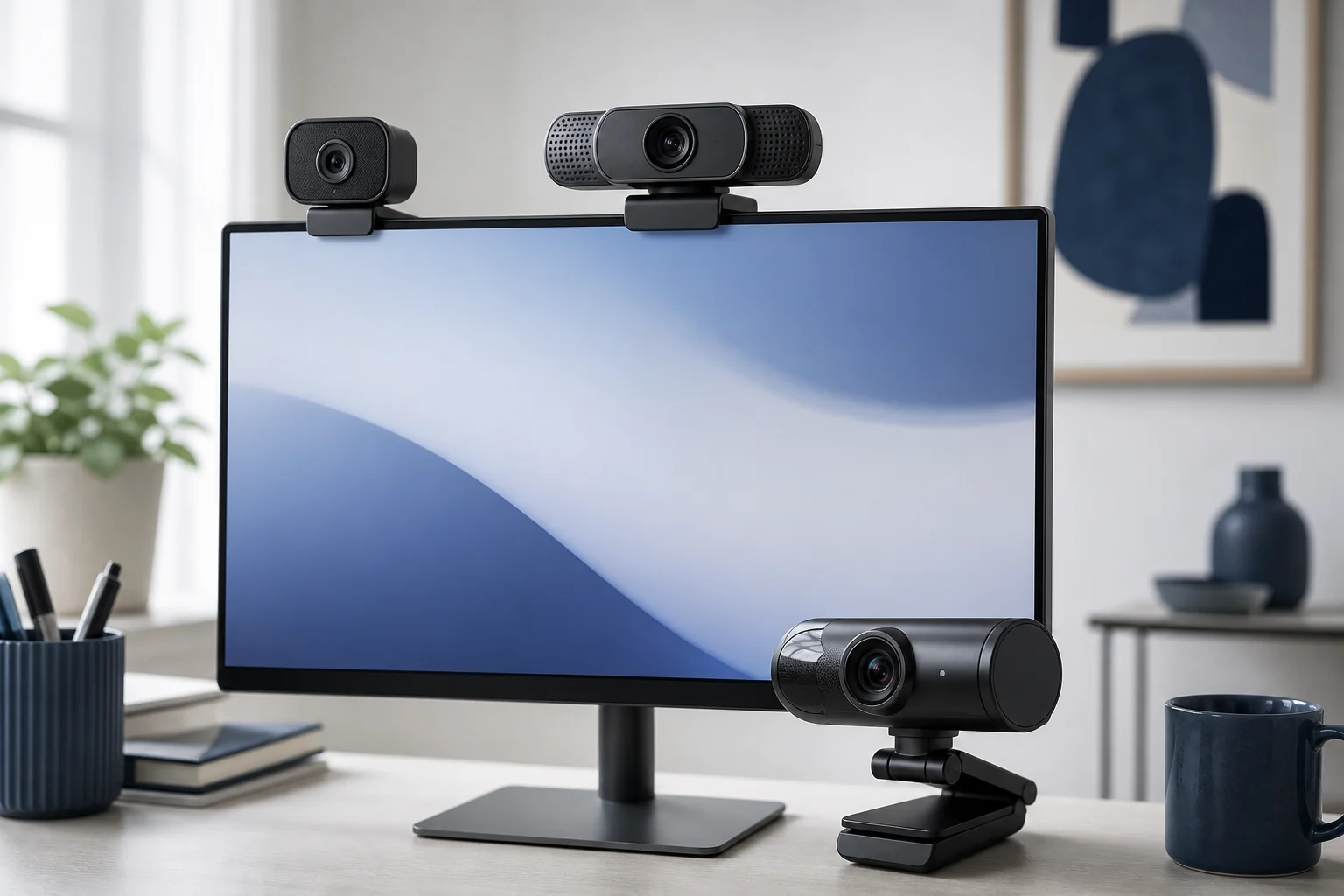
The Logitech MX Brio 4K Webcam is the best premium webcam for most people who regularly present, record, or meet from a fixed desk. It offers 4K at 30fps or 1080p at 60fps, advanced autofocus, adjustable fields of view, dual beamforming microphones, a physical privacy shutter, and USB-C connectivity. It is heavier and more expensive than a basic meeting camera, and 4K video cannot repair bad light or a low laptop angle. Logitech's Brio 500 is the better ordinary-work choice.
Resolution is only one link in the image chain. A larger sensor, sensible exposure, accurate focus, and a lamp placed near eye level can matter more than moving from 1080p to 4K. Video apps often compress or cap the transmitted stream. A 60fps mode improves motion but needs more light and bandwidth. Built-in microphones are convenient; a separate microphone or headset is usually clearer when room echo is strong.
Current specifications, setup guides, software requirements, connection standards, focus systems, fields of view, mounts, privacy hardware, and frame-rate tables formed the comparison. No image-quality measurements were produced. Complete the call setup with our wireless-headphone guide and position the image on a suitable display from our computer-monitor guide.
Quick picks
| Pick | Best for | Main facts | Who should skip it |
|---|---|---|---|
| Logitech MX Brio 4K Webcam | professionals and creators who want detailed video, flexible framing, and manual controls from one fixed camera | 4K/30fps and 1080p/60fps; advanced autofocus; glass lens; 65°, 78°, or 90° diagonal field of view; USB-C; dual beamforming microphones; integrated shutter | your meeting software is limited to 720p, the computer lacks a suitable port, or lighting and audio need the budget more |
| Logitech Brio 500 | hybrid workers who want reliable framing, a privacy shutter, and useful software without paying for 4K | 1080p/30fps or 720p/60fps; 4MP sensor; autofocus; 65°, 78°, and 90° field-of-view options; stereo microphones; USB-C; integrated privacy shutter | you record fine product detail, require 1080p at 60fps, or use ChromeOS and expect every Logi Tune feature |
| Elgato Facecam MK.2 | streamers who sit at a controlled distance and want 1080p60 plus detailed Camera Hub control | uncompressed 1080p60 support over USB 3.0; Sony Starvis 1/2.5-inch sensor; fixed focus from 30 to 120cm; 84-degree field; f/2.4 lens; privacy shutter; no built-in microphone | you move close to the lens, need autofocus or an integrated microphone, or cannot provide a direct suitable USB connection |
| Insta360 Link 2 | teachers, presenters, and demonstrators who move around a room and can supervise automated framing | 1/2-inch sensor; 4K/30fps and 1080p/60fps; two-axis gimbal; AI tracking; 10cm-to-infinity autofocus; 79.5-degree diagonal field; gesture and whiteboard modes | you sit still, work with confidential material, dislike gesture controls, or want the simplicity of a fixed lens |
| Logitech C920s Pro HD Webcam | basic calls on a computer with USB-A where proven plug-and-play operation matters more than 60fps or 4K | 1080p/30fps; autofocus glass lens; 78-degree field; stereo microphones; USB-A with 1.5m cable; detachable privacy shutter; tripod-ready clip; two-year limited warranty | you need USB-C without an adapter, adjustable fields of view, high-frame-rate video, or a sophisticated low-light image |
The cameras separate into premium 4K, straightforward office, fixed-focus streaming, motorized tracking, and basic 1080p roles. Lighting and placement should be corrected before paying for resolution or movement features.
Why these five picks differ
1. Logitech MX Brio 4K Webcam: best premium webcam for most desks
Best for: professionals and creators who want detailed video, flexible framing, and manual controls from one fixed camera. Skip it if: your meeting software is limited to 720p, the computer lacks a suitable port, or lighting and audio need the budget more.
MX Brio combines useful modes rather than treating 4K as the only answer. Choose 4K/30 when fine detail and cropping matter, or 1080p/60 when hand movement and demonstrations benefit from smoother motion. Its advanced autofocus is more forgiving than a fixed-focus streaming camera when you hold an object toward the lens.
Logitech offers 65, 78, and 90-degree diagonal framing plus digital crop controls. A narrower view hides room clutter and makes the face larger; the wide view fits two people or a whiteboard but exaggerates an empty room. Show Mode lets the camera tilt toward a desktop for documents, although mount stability and software support should be checked before relying on it.
The camera weighs 176g with its mount and connects through USB-C. Confirm the cable and port path can sustain the chosen mode without a questionable hub. The integrated shutter is a real physical cue. Built-in microphones are adequate for convenience, but their position atop a monitor still captures room reflections and keyboard noise.
On Logitech MX Brio 4K Webcam, look for MX Brio model 960-001559 or the matching regional color SKU, plus 4K/30 and 1080p/60 support. The older Brio 4K has a different body and feature set.
2. Logitech Brio 500: best for everyday work calls
Best for: hybrid workers who want reliable framing, a privacy shutter, and useful software without paying for 4K. Skip it if: you record fine product detail, require 1080p at 60fps, or use ChromeOS and expect every Logi Tune feature.
Brio 500 puts its budget into meeting features. Full HD at 30fps is sufficient for most conference platforms, while 720p/60 offers smoother motion at lower detail. Autofocus, three field-of-view choices, and an integrated shutter make it a substantial step above a laptop camera without entering creator-camera pricing.
Auto-framing and Show Mode depend on Logi Tune, and Logitech notes that auto-framing is not available through that software on ChromeOS. That distinction matters: the camera still works as a UVC device, but the advertised experience changes by platform. The attached 1.5m cable ends in USB-C, so older desktops may need a proper data adapter.
The 90-degree option is useful for two people, but solo callers generally look better at 65 or 78 degrees. Brio 500 is the rational work pick when lighting and composition are already under control. Spend the difference from MX Brio on a lamp or microphone if those are the obvious weaknesses.
A Logitech Brio 500 listing should show the integrated shutter, USB-C lead, and 1080p/30 ceiling. Check platform notes because Logi Tune features such as auto-framing are not identical on ChromeOS.
3. Elgato Facecam MK.2: best fixed-desk streaming webcam
Best for: streamers who sit at a controlled distance and want 1080p60 plus detailed Camera Hub control. Skip it if: you move close to the lens, need autofocus or an integrated microphone, or cannot provide a direct suitable USB connection.
Facecam MK.2 deliberately behaves more like a small studio camera than an all-in-one meeting puck. It supports 1080p at 60fps, including HDR modes, and Elgato's Camera Hub exposes shutter, ISO, white balance, framing, and picture controls. Settings can be tuned for a fixed lighting setup instead of changing unpredictably during a stream.
The lens is fixed focus with a specified 30–120cm range. That keeps a seated presenter stable but makes close product demonstrations a poor fit. There is no microphone, so the buyer must already have a headset, USB mic, or audio interface. Those exclusions are advantages only in a planned creator setup.
Elgato calls for USB 3.0 or better for uncompressed modes and advises a direct connection rather than a hub in its quick-start material. USB 2.0 falls back to MJPEG behavior. The two-meter cable and quarter-inch mounting thread ease placement, while the 84-degree field leaves room for cropping.
For Elgato Facecam MK.2, verify MK.2, the supplied USB 3.0 cable, and the fixed 30–120cm focus range. The absence of a microphone is intentional and should be planned into the audio budget.
4. Insta360 Link 2: best for automatic movement tracking
Best for: teachers, presenters, and demonstrators who move around a room and can supervise automated framing. Skip it if: you sit still, work with confidential material, dislike gesture controls, or want the simplicity of a fixed lens.
Link 2's two-axis gimbal is the decisive feature. It can pan and tilt to follow a presenter, keeping a teacher or demonstrator framed when a fixed monitor camera would show an empty chair. The 1/2-inch sensor, f/1.8 lens, 4K/30 and 1080p/60 modes also make it competitive as an ordinary camera.
Automation needs boundaries. Tracking can frame the wrong person, reveal part of a room that was meant to remain outside the shot, or move distractingly during a formal call. Define tracking areas, learn the pause control, and confirm framing in the application before presenting sensitive information. Link 2C removes the gimbal and is cheaper for stationary use.
Autofocus is specified from 10cm to infinity, which is more suitable for close objects than Facecam's fixed range. Whiteboard and gesture features can help teaching, but software support and room layout decide their value. Do not buy a motorized camera merely because it looks advanced; buy it because movement is part of the work.
Choose the gimballed Link 2 in Insta360 Link 2, not the fixed Link 2C, when room tracking is required. Confirm the mount, cable, and current desktop software support for the intended tracking or whiteboard mode.
5. Logitech C920s Pro HD Webcam: best basic 1080p value
Best for: basic calls on a computer with USB-A where proven plug-and-play operation matters more than 60fps or 4K. Skip it if: you need USB-C without an adapter, adjustable fields of view, high-frame-rate video, or a sophisticated low-light image.
C920s remains relevant because it covers the ordinary call without complicated requirements. It delivers 1080p at 30fps, autofocus, a sensible 78-degree diagonal field, and stereo microphones over a USB-A connection. The universal clip has a tripod thread and the included shutter covers the lens.
Its age shows. There is no 1080p/60 mode, no 4K crop headroom, and no selectable optical field. Automatic light correction can lift a dim face but also reveal noise and cannot create flattering direction. A small lamp near the monitor usually improves the image more than software exposure.
The USB-A plug is convenient on older desktops and awkward on USB-C-only laptops. Use a data-capable adapter, not a charge-only piece. Buy C920s when it is clearly less expensive than Brio 500; if prices converge, the newer camera's shutter, field options, and Show Mode are more useful.
The relevant Logitech C920s Pro HD Webcam package is C920s with its detachable privacy shutter and USB-A cable. C920, C922, and business variants can look alike while changing frame-rate or accessory details.
How to choose
Start with light and camera height
Place the lens near eye level and put a broad light in front and slightly to one side. A bright window behind the head forces the camera to choose between a dark face and a blown background. Raising a laptop or adding a lamp can beat an expensive camera left below the chin in mixed light.
Take a camera preview at the intended desk height with the normal window and lamp positions. If the face remains backlit or the lens sits below the chin, placement is the first purchase to fix.
Pick frame rate for the scene
Thirty frames per second is enough for normal conversation. Sixty helps hand movement, demonstrations, and streams, but each frame receives less light at the same exposure and USB bandwidth rises. A noisy, dim 60fps image is not automatically better than a clean 30fps one.
Name the scenes that contain meaningful motion before choosing 60fps. Ordinary conversation rarely needs the extra bandwidth, while demonstrations and streams can justify it under adequate light.
Field of view controls the room
About 65 degrees gives a tight solo frame, 78 degrees is a common middle, and 90 degrees includes more people or workspace. Wide angles expose clutter and make the face smaller. Digital zoom crops pixels; 4K provides more crop room when the final call is 1080p.
Frame a solo call and the widest recurring group separately. This reveals whether a selectable 65–90 degree view is useful or whether a fixed 78-degree camera already covers the room.
Autofocus and fixed focus suit different jobs
Autofocus is useful when distance changes or products are shown close to the lens. It can hunt. Fixed focus stays stable inside its designed range and works well for a seated streamer, but objects outside that range remain soft. Check the stated near limit.
Measure the nearest object that must remain sharp. A fixed-focus camera can be stable for a seated presenter yet fail a product demo brought inside its published focus range.
USB and software requirements are real
High-quality modes may require USB 3.x, a direct port, or specific software. A connector shape does not prove speed. Corporate computers may block camera utilities, leaving only standard UVC controls. Confirm that essential framing works in the actual meeting application.
Trace the full connection from camera through dock to computer and note available USB bandwidth. Also check whether the managed system permits the utility required for digital framing, exposure control, or tracking.
Setup, care, and ownership
Select the webcam explicitly in each meeting application. Operating systems and browsers can retain the laptop camera or a low-resolution default even after new hardware is connected. Verify resolution, frame, and microphone before joining.
Mount the camera without pressing on the display panel. Route its cable with enough slack for monitor movement and keep it away from vents. For a gimbal camera, clear the sweep so the body cannot strike a wall or accessory.
Use a physical shutter or disconnect the camera when privacy demands it, but remember that a lens cover does not mute the microphone. Check the application's audio input separately.
Clean the lens with a blower and clean microfiber cloth. Facial oil or cleaning spray creates haze that software sharpening cannot fix. Do not use paper products or household glass cleaner unless the manufacturer explicitly permits them.
If video stutters, test a direct port, close competing camera apps, lower resolution or frame rate, and check CPU use. Hubs, long extension cables, background replacement, and 4K encoding can each be the bottleneck. Change one variable at a time.
Record the webcam model, firmware source, supported resolution/frame-rate pairs, USB requirement, mount, and privacy behavior. Replace a damaged cable or unstable mount with the correct part, and remember that a closed lens shutter does not disable an active microphone.
Credible competition
The original Logitech Brio 4K remains a capable business camera with Windows Hello, but MX Brio offers a newer imaging and control package for the premium general pick. Razer Kiyo Pro and Kiyo Pro Ultra are credible streaming choices, particularly when sensor size matters, yet Elgato's fixed-focus limitations and software path are stated more clearly for the controlled-desk case. OBSBOT Tiny models compete directly with Insta360's tracking concept; buyers should compare privacy posture, gesture behavior, and support rather than gimbal movement alone. Apple's Continuity Camera can make a recent iPhone an excellent Mac webcam, but it ties up the phone and requires a secure mount.
A webcam promotion is worthwhile only after checking focus type, maximum frame rate, connector, mount, and required software. Bundled lights or tripods do not compensate for a camera whose privacy or framing behavior conflicts with the room.
How we researched
Logitech, Elgato, and Insta360 specification pages, quick-start material, compatibility notes, and software documentation current through August 10, 2026 were used to compare sensors, resolution/frame-rate pairs, focus ranges, fields of view, microphones, mounts, USB modes, and privacy controls.
No side-by-side footage, exposure chart, autofocus timing, microphone recording, USB-bandwidth measurement, or long-term gimbal trial was produced. Image and tracking descriptions therefore stay within documented capabilities and decision-oriented inference; changing prices and outward research links were excluded.
Frequently asked questions
Is 4K useful if calls are only 1080p?
It can provide crop and digital-zoom headroom and improve local recordings. It does not guarantee that a meeting service transmits 4K. If lighting, placement, and audio are poor, address those first.
Do I need 60fps for Zoom or Teams?
No. Thirty is normal and often handles low light better. Sixty is useful for movement and streaming when the application supports it, the room is bright enough, and the computer can process it.
Are webcam microphones good enough?
They are convenient and can be clear at close range in a quiet, soft room. Distance, keyboard noise, and reflections hurt them. A headset or microphone placed nearer the mouth usually improves intelligibility.
Can a webcam work through a dock?
Often, but high-bandwidth modes can fail when a dock shares USB bandwidth with storage, displays, and other cameras. Test the intended mode. A direct port is the best diagnostic step when video freezes or falls back.
Does a privacy shutter turn off the camera?
Usually it only blocks the lens; software and microphones can remain active. Look for the shutter in the preview, mute or select audio separately, and disconnect power when a stronger physical assurance is required.
Final recommendation
Logitech MX Brio 4K Webcam is the premium fixed-desk recommendation when 4K crop room, 1080p/60, autofocus, and adjustable framing will be used. Brio 500 is the work-call value, Facecam MK.2 suits a controlled streaming distance, Link 2 follows a moving presenter, and C920s handles a basic USB-A call.