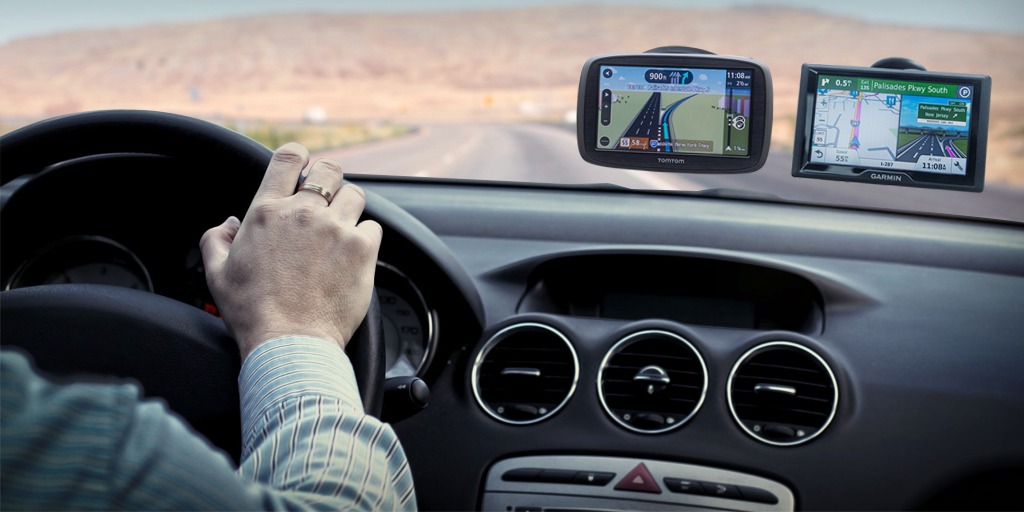
A dedicated car GPS still makes sense when you want a large map that is not competing with messages, music, and a low phone battery. It is not automatically better than navigation on a modern phone. For many daily drivers, a phone app and a solid mount are enough. Buy a standalone navigator when you regularly drive beyond dependable cell service, prefer a permanent road-trip screen, need truck-aware routing, or want a dash camera and navigator in one unit.
For most people who want a dedicated screen for car travel, the Garmin DriveSmart 86 is the one to consider first. Its 8-inch display, preloaded street maps, Wi-Fi map updates, and smartphone-connected traffic make it a comfortable road-trip tool, especially in cars with a dashboard that can accommodate the screen. The smaller Garmin Drive 53 is the lower-cost choice for a driver who wants simple turn-by-turn guidance and does not mind handling updates through Garmin Express. Choose the Garmin DriveCam 76 if having a built-in dash camera is worth the larger expense and the extra responsibility of managing video. Professional truck drivers should skip the car models and use the Garmin dēzl OTR810, which is designed around a truck profile and arrival planning.
Every navigator has a boundary: it can give a route, but it cannot see a new closure, a low branch, a police direction, or a sign that applies to your exact vehicle as reliably as you can. Keep your eyes on the road, follow posted restrictions, and treat a route as a planning aid. That point matters most for a large truck or RV, where a missed height or weight restriction is not a minor detour.
Our picks at a glance
| For | Pick | Why it fits | Skip it if |
|---|---|---|---|
| Road trips and drivers who want a large dedicated screen | Garmin DriveSmart 86 | 8-inch dual-orientation display, preloaded maps, Wi-Fi updates, and phone-connected traffic. | Your dashboard is cramped or your phone already handles every trip well. |
| Simple offline guidance at a lower cost | Garmin Drive 53 | Compact 5-inch navigator with current map support and straightforward on-screen routing. | You need built-in Wi-Fi, a very large display, or always-on live traffic. |
| Navigation plus a forward-facing dash camera | Garmin DriveCam 76 | 7-inch navigator with a built-in 1080p dash camera, 140-degree field of view, and included 16 GB card. | You would rather choose a separate dash camera or your local recording rules make it a poor fit. |
| Commercial trucks and work vehicles | Garmin dēzl OTR810 | 8-inch truck navigator with truck-profile routing, arrival planning, and truck-focused route information. | You drive an ordinary passenger car; it is more device than you need. |
Best car GPS for road trips: Garmin DriveSmart 86
The Garmin DriveSmart 86 is the practical dedicated navigator for a driver who wants a large, readable map on a long trip. The 8-inch screen has a 1,280-by-800 resolution, can sit in either landscape or portrait orientation, and is large enough that a passenger can follow the route without leaning forward. Garmin lists 32 GB of internal storage, preloaded street maps, a microSD card slot for added maps, and Wi-Fi map and software updates.
That update method is one of the reasons to pay more for this model. A GPS is only as useful as its maps. Being able to connect it to home Wi-Fi means you can update before leaving without treating a computer connection as a maintenance project. Garmin’s support page shows current North American map releases for this product family, which is a better sign of ongoing support than a vague promise on a retail listing. Still, run the update before a trip, not in the driveway five minutes before departure. Map downloads can be large and the device is unusable while an update is installing.
The DriveSmart 86 can pair to a smartphone for live traffic and other connected services. That is useful, but it changes the purchase calculation. It is a standalone navigator for its maps and GPS positioning; it is not a fully independent source of real-time traffic. If the reason you want a GPS is to avoid relying on your phone altogether, buy it for the larger screen and stored maps, then regard live traffic as an optional connected feature. A phone needs to have service and the Garmin Drive app needs to be paired for that part of the experience.
This is a large device. Measure the part of your windshield or dash where the mount will live and sit in the driver’s seat before you buy. A screen that looks wonderfully clear in a product photo can crowd the view in a small car. It has a rechargeable battery, but Garmin rates it for up to about one hour, so plan to power it from the vehicle while driving. The battery is for short breaks and setup, not a full day away from a power outlet.
Buy the DriveSmart 86 for regular road trips, a couple that wants the passenger to help navigate, or a driver who finds phone screens too small. Skip it if you only need directions around town. A good phone mount and your existing navigation app will be less expensive and less cluttered for that job.
Best simple car GPS: Garmin Drive 53
The Garmin Drive 53 is the sensible option when a large smart navigator is unnecessary. It uses a 5-inch touchscreen and is easier to place in a small windshield area. The point of this model is uncomplicated route guidance with preloaded maps and driver alerts, not a long feature list. It is the one to buy for a relative who wants a separate navigation device, a second car that needs an occasional road-trip navigator, or a driver who simply dislikes using a phone for directions.
The compromise is maintenance and connectivity. The base Drive 53 line uses Garmin Express on a computer for map and software updates; versions sold with a traffic accessory are a different package, so read the exact product title rather than assuming every Drive 53 includes the same connection options. Garmin continues to publish map-update support for the device family, but that does not mean updates appear automatically. Put a calendar reminder on your phone to check the maps before a major trip and leave enough time for the process.
A 5-inch display is adequate for one driver, although it is less pleasant for a passenger trying to follow the route. That is the honest trade-off for the lower price and smaller footprint. Do not expect it to deliver the traffic awareness, voice features, or screen real estate of the DriveSmart 86. If those differences sound frustrating before you buy, spending up once is better than replacing a barely used basic navigator later.
The Drive 53 is also a good reminder that offline mapping is not the same thing as automatic accuracy. It can keep routing when a phone signal is weak, but a newly built road, temporary closure, or changed business entrance may not be reflected until after an update. Keep a printed address or an offline map on your phone for a remote destination. Redundancy is cheap insurance on a long drive.
Best GPS with a dash camera: Garmin DriveCam 76
The Garmin DriveCam 76 combines a 7-inch navigator and an integrated dash camera. Garmin lists a 1,024-by-600 display, 1080p video recording, a 140-degree field of view, and a 16 GB microSD card in the box. The camera records while the device is powered and can save video when it detects a possible incident. It is a neat answer for a driver who wants fewer devices and fewer power cords on the windshield.
Combining two tools creates one important obligation: manage the recording. The DriveCam has a camera-card slot and a separate map-and-data slot. Garmin specifies a Class 10 microSD card between 8 GB and 512 GB for the camera, and its manual notes that memory cards wear out and may need replacement. Do not install it, forget it, and assume a clip will be there years later. Check the card, make sure the camera has a clear view through the windshield, and learn how the device handles saved and unsaved footage.
Audio recording needs extra care. Garmin’s manual warns that some jurisdictions restrict in-car audio recording or require the knowledge and consent of passengers. Camera placement can also be regulated, and any mount that blocks your view is a bad installation. Check the rules where you drive before turning on audio or relying on a particular windshield location. This is a recording device, not a legal shortcut.
Choose the DriveCam 76 when you genuinely want both features in the same place. Skip it if you have a preferred dash-camera brand, want front-and-rear coverage, or need a camera that can be hardwired for parking surveillance. A separate dash camera and a DriveSmart can be the better setup when video is the higher priority. The all-in-one unit is convenient, yet it ties two replacement cycles together.
Best GPS for commercial trucks: Garmin dēzl OTR810
The Garmin dēzl OTR810 is for people whose vehicle dimensions alter the route. It has an 8-inch display and lets a driver use a truck profile when calculating routes. Garmin describes custom truck routing based on the size and weight entered for the rig, road alerts for upcoming restrictions and hazards, truck arrival planning, and satellite imagery for some destination previews when paired with the dēzl app.
The key word is “assist.” Garmin explicitly says that entering a truck profile does not guarantee every vehicle characteristic will be included in every route suggestion, and the relevant information is not available in all areas. A commercial driver must still read bridge, clearance, weight, and local restriction signs. The navigator is valuable because it can put more of those factors into route planning; it cannot transfer the legal responsibility to the screen.
This model earns its place when you are driving a commercial truck, a large work vehicle, or another rig for which a car route is plainly wrong. It is overkill for a sedan. The extra truck-specific tools, the larger screen, and the cost only make sense when they are part of the daily job. For an RV, compare the relevant Garmin RV models as well, because an RV profile and a commercial-truck workflow are not identical.
Decide whether you need a GPS at all
Start by being honest about the problem you are trying to solve. A phone has excellent navigation apps, search, and live traffic, and it is already in your pocket. A standalone navigator earns its place by giving you a separate, usually larger screen, stored maps, simple controls, and a device that can stay in the car. It is particularly useful when the phone is busy with calls or music, when several people share a vehicle, or when there is little cell coverage between destinations.
If the only frustration is that your phone slides around or sits too low, fix the mounting problem first. Our guide to smartphone car mounts explains what to look for in a stable, sightline-friendly mount. It may be the better answer for a city driver. A dedicated GPS should simplify a real need, not duplicate a perfectly acceptable setup.
For trips into remote areas, use redundancy even after buying a navigator. Enter the destination and save it before leaving, update the maps while you have reliable Wi-Fi, and keep an offline map on a phone or a written address in the glove box. GPS reception, electrical power, road conditions, and destination details can all fail in different ways. One extra source of directions is more useful than a more expensive screen.
Screen size and mounting matter more than a feature list
A five-inch unit like the Drive 53 is easier to fit in a small car and less likely to dominate the windshield. A seven- or eight-inch navigator gives you more readable lane, junction, and route information, which can reduce the urge to lean toward the screen. Bigger is not automatically safer. The mount needs to stay out of the driver’s sightline, allow the power cord to be routed away from controls, and comply with local rules.
Set up the device while parked. Choose a position that lets you glance at the map without hiding mirrors, traffic lights, or pedestrians at an intersection. Test the route of the power cable with the steering wheel turned and the gear selector in use. A loose charging cable beside a pedal or a screen mounted in a blind spot is an installation mistake, not a feature trade-off.
Display orientation can be useful when the device supports it. The DriveSmart 86 can be mounted in portrait or landscape, so it is worth trying both while parked. Portrait mode can show more road ahead; landscape may fit the dash better. Pick the arrangement that keeps the view clear. Do not choose an orientation only because it looks like a phone.
Map updates and traffic are different jobs
Map updates refresh the stored road and point-of-interest data. They are important for any standalone navigator, especially before a cross-country trip or a drive to a new development. Traffic data helps the device react to changing congestion and incidents. The DriveSmart and DriveCam families can receive subscription-free traffic through the Garmin Drive app when connected to a compatible smartphone, but traffic coverage and timing are not guaranteed. A device may know the map perfectly and still lack a current report of a temporary closure.
Check the package you are buying. Product families often contain small but important variations: a different screen size, a traffic accessory, a dash camera, a region-specific map package, or a different part number. Read the model number in the Amazon listing and compare it against the manufacturer’s current product page. Avoid a “renewed” or clearance listing unless you are comfortable confirming the map region, accessories, return condition, and support status yourself.
Run updates at home with the vehicle power cable or another approved power source connected. Garmin cautions that large files can take time and the navigator cannot be used while installation is underway. Do not start a major update from a hotel Wi-Fi network with a data limit, then discover at checkout that the device is unusable. For DriveCam owners, update the map software and check the camera card as separate pieces of maintenance.
Dash-camera features are useful only when you maintain them
The DriveCam 76 removes the need to choose where two separate windshield devices will sit, but a combination device is still a dash camera. Keep the lens and the part of the windshield in front of it clean. Confirm the time and date are correct, check that video can be played back, and replace a worn card instead of waiting for a failure after an incident. The included card is convenient, not permanent.
Think through the recording policy before anyone else enters the car. Decide whether audio should be off, who can access clips, and how long you want unsaved footage retained. Garmin notes that its temporary-footage setting can be configured to delete unsaved video quickly, which can be useful for privacy. The right setting depends on your local rules and your own reason for recording. A navigator is not a substitute for lawful installation or safe driving.
Useful road-trip accessories are boring on purpose
A vehicle power outlet, an undamaged cable, and a secure mount make more difference to daily use than most menu features. Keep the navigator’s cable where it cannot interfere with controls, and do not leave a lithium-ion device in direct sun for long periods. If you pack an emergency kit for longer trips, include a charged power bank and basic vehicle equipment. Our guide to jumper cables covers the choices that matter when a car will not start.
For a rental car, put the device up only for the trip and remove the mount cleanly afterward. For a shared vehicle, save a home address and a few common destinations, then review saved locations periodically. A device full of old jobs, former addresses, and forgotten routes is harder to use when you actually need it.
How we evaluated car GPS navigators
We reviewed current manufacturer pages and support documentation for display size, map availability, update method, connectivity, dash-camera specifications, memory-card requirements, and truck-routing limitations. We looked for products that remain actively supported and separate recommendations by the need that changes the purchase: simple offline guidance, a large travel screen, integrated recording, or commercial-vehicle routing.
We did not treat a route suggestion, traffic report, or camera warning as a guarantee. Navigation devices need current maps, an appropriate installation, and a driver who follows road signs and local law. The guide also avoids fixed prices because Amazon availability and sale pricing change often.
Questions before buying a car GPS
Do I need a dedicated GPS if I have a smartphone?
Probably not for ordinary daily driving. Buy one when you want a larger separate screen, stored maps, less dependence on a phone, or routing built for a truck or RV. A phone mount is often enough if your existing navigation app works well.
Does a GPS work without cell service?
A navigator with preloaded maps can continue providing basic positioning and route guidance without a cellular signal. Connected traffic, weather, and other live services may require a paired phone and service. Update maps before a remote trip.
Can a truck GPS guarantee that I will avoid every low bridge?
No. Truck-profile routing is a planning tool, and Garmin says vehicle information may not be reflected in every route or every area. Enter the correct vehicle data and always follow posted clearances, weight limits, and restrictions.
Is the Garmin DriveCam 76 a replacement for every dash camera?
No. It is a convenient front-facing navigator-and-camera combination. A separate dash-camera system can make more sense if you want rear coverage, parking surveillance, or a different video setup.
Buy the navigator that solves the actual problem
Choose the Garmin DriveSmart 86 for a large road-trip screen and easier Wi-Fi updates. Choose the Garmin Drive 53 when simple, compact offline guidance is enough. Get the DriveCam 76 only if combining navigation with a front camera fits your recording obligations. Commercial drivers should buy the dēzl OTR810 for truck-aware planning and still follow every road sign. Update the device before departure, mount it where it cannot block the view, and let the route support your attention instead of competing for it.