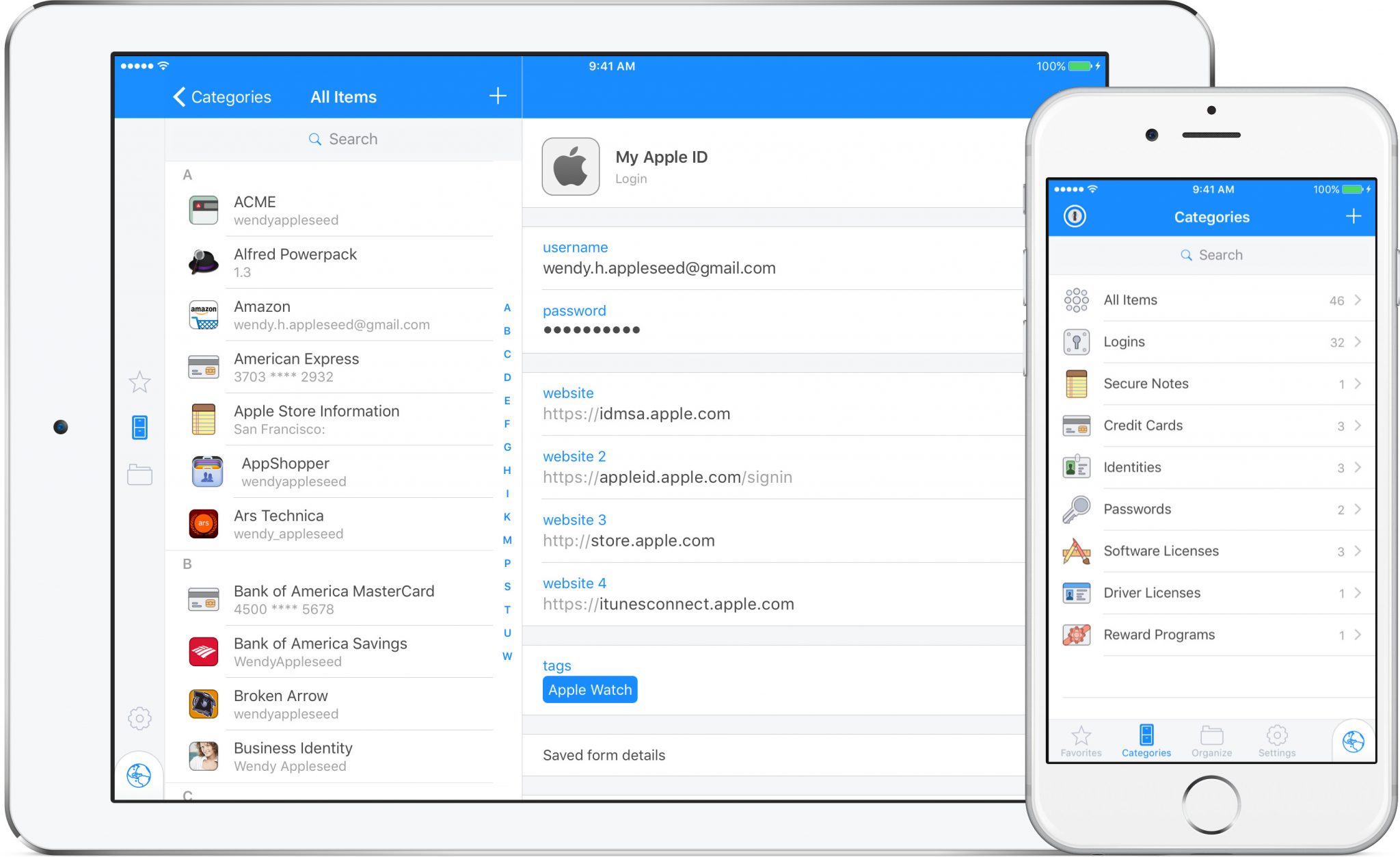
A password manager is worth using when it lets you create a different long password for every important account without making daily sign-in harder. For most people who want a cross-platform vault with a clear security model, choose Bitwarden. It encrypts vault data on the device before storage, works across common platforms, supports stored passkeys, and offers an emergency-access option on eligible plans. Its trade-off is that the setup asks more of you: you need a strong master password, a recovery plan, and a few minutes to learn how the browser extension behaves.
Choose 1Password when a household needs shared vaults, account recovery planning, and a polished paid service. Pick Apple Passwords when everyone who needs access uses current Apple devices and does not need a separate cross-platform vault. A manager is not a security force field. It cannot protect a person who gives a code to a scammer, ignores a device compromise, or loses every recovery method. The useful goal is simpler: reduce password reuse, make strong sign-ins routine, and know how to get back in when a device is lost.
Quick picks
| Situation | Pick | Why it fits | Compromise |
|---|---|---|---|
| Most people who use more than one platform | Bitwarden | End-to-end encrypted vaults, broad device support, saved passkeys, and an emergency-access path. | You are responsible for the master password and a deliberate recovery plan. |
| A household that needs structured sharing and recovery | 1Password Families | Individual accounts, shared and private vaults, and family-organizer recovery tools. | It is a paid membership, and everyone still needs to understand their own sign-in details. |
| Apple-only household with current devices | Apple Passwords | Passkeys, passwords, verification codes, shared groups, and iCloud Keychain integration are built in. | Less convenient for mixed-platform households and teams that need richer permission controls. |
| High-value accounts that support hardware keys | YubiKey 5 NFC | A physical factor can strengthen sign-in for supported accounts. | It is an additional recovery obligation, not a replacement for passwords or account backups. |
Choose for recovery before convenience
Every password manager asks you to protect one very important sign-in. That can feel counterintuitive, but it is easier to protect one unique master password and a few recovery methods than to remember dozens of weak or reused passwords. The cost is real: if you forget the master password, lose trusted devices, and have no recovery option, a service designed to keep the provider from reading your vault may not be able to rescue you. Plan for that before importing anything important.
Write down the account email address you used, the manager’s recovery process, where any recovery codes live, and who can help in an emergency. Keep that record in a physically secure location. Do not save the master password beside the recovery code in a note app that unlocks with the same device code. A trusted person can be part of the plan, but shared access should be intentional and limited to what that person genuinely needs.
Then turn on the strongest practical sign-in protection the manager supports. A distinct master password is still necessary even when you enable biometrics, a passkey, or a security key. Biometric unlock is convenient on a device you already trust; it is not a substitute for knowing the credentials needed on a new device. Save backup codes during setup, confirm you can find them, and add a second recovery method before relying on the vault for every account.
Best cross-platform choice: Bitwarden
Bitwarden is the best fit for a person who wants a single vault across computers, phones, and browsers without locking the choice to one device maker. Bitwarden says it encrypts and hashes vault data locally before it is sent to its servers, and describes the service as zero knowledge: its servers store encrypted data, while the keys required to decrypt a personal vault remain with the user. That architecture is useful only when paired with a master password you have not reused anywhere else.
Its feature set covers the basics that matter: generated unique passwords, browser filling, mobile access, secure notes, stored passkeys for other services, and sharing features. Bitwarden also has an emergency-access feature on eligible paid plans. It lets a chosen contact request access after a waiting period you define, rather than making that person a permanent co-owner of every item. That is a thoughtful option for a solo user who wants a contingency plan, a couple who shares essential accounts, or an adult child helping a parent prepare for an emergency.
The trade-off is that Bitwarden expects a little attention from the user. Review the browser extension settings, especially autofill behavior. Use a long unique master password that you can recall without storing in the vault itself. Do not casually enable any unlock method until you understand what will happen on a new browser or device. Bitwarden’s passkey unlock features also have compatibility requirements, so keep the master password and recovery options available even if a passkey setup works well today.
Bitwarden is not the best choice for someone who refuses to handle a recovery plan or wants a family organizer to restore access after a mistake. In that case, 1Password Families may be easier to manage. It is the strongest general recommendation for a person who values cross-platform access and is prepared to take ownership of the main credential.
Best for a household: 1Password Families
1Password Families is the better choice when several people need private accounts plus a safe way to share only selected information. Each person gets their own account password and Secret Key. The service offers a Shared vault for household items and additional vaults that can be limited to particular family members. That is useful for keeping a streaming service, home Wi-Fi credential, insurance details, or a shared credit card separate from personal email, medical portals, and individual banking logins.
Its recovery model is a major reason to choose it. A family organizer can help recover a family member who loses their account password or Secret Key. Organizers cannot recover themselves, which is why the service recommends having more than one organizer. That detail is easy to skip during setup and important later. Make at least two capable adults organizers, discuss what information belongs in shared vaults, and avoid giving every family member access to everything just because a Shared vault exists.
1Password’s Secret Key adds another piece to the account security model. It is stored on devices that have signed in and included in the Emergency Kit, but 1Password cannot retrieve it for you. Store the Emergency Kit in a secure physical place and make sure the right person can locate it if you are unavailable. Keep each person’s private vault private. Sharing works best when it is deliberate, not when the household uses one master account.
The compromise is price and administration. A paid household service only pays off if people actually use their own accounts and the organizers keep the membership and recovery plan current. A single person with uncomplicated needs may prefer Bitwarden. A family that shares fewer accounts and lives entirely in the Apple ecosystem may need only the Apple Passwords app. Choose 1Password when separate identities, selective sharing, and recovery coordination are worth paying for.
Best for current Apple-only households: Apple Passwords
Apple’s Passwords app is the right answer for a household whose devices are current iPhones, iPads, Macs, and Apple-compatible computers. Apple says the app stores passwords, passkeys, Wi-Fi passwords, and verification codes in one place through iCloud Keychain. It can flag weak, reused, and known-compromised passwords, and it supports shared groups for passwords and passkeys among trusted contacts. That covers a surprising amount of everyday use without adding a separate subscription.
The simplicity is the point. A person who mostly signs in from Safari and Apple apps may find Apple Passwords easier to adopt than a separate vault and extension. It also works with iCloud for Windows in Chrome and Edge, which can be enough for a household with an occasional Windows computer. Shared groups are more disciplined than texting a password to someone: the credential is shared from device to device without revealing it in a message, and an update can reach everyone in the group.
Its boundary is platform mix. An Apple-first setup can become awkward when someone regularly uses Android, Linux, Firefox, or a managed work environment. It also does not replace a business password manager with access controls and offboarding. If those cases matter now, use Bitwarden or another dedicated cross-platform service from the start. Switching later is possible, but imports and duplicate records create work.
A hardware key is extra protection, not a vault
A hardware security key such as a YubiKey 5 NFC can add a strong physical factor for accounts that support FIDO-based sign-in. It is most useful for the email account that resets everything else, the password-manager account, financial accounts that support it, and other high-value services. The key proves possession during sign-in; it does not hold every password or remove the need for a vault.
Buy two compatible keys when the service allows it. Register both, keep one with you, and store the spare somewhere separate and secure. Record which accounts use the keys and where backup codes are stored. A single key on a keyring creates a new single point of failure. Before buying, check the ports and wireless options on the devices you actually use; a USB-A-only key is inconvenient if your laptop and phone use USB-C or NFC.
A key will not protect you if you approve a fraudulent recovery request, install untrusted software, or let someone use an unlocked device. It is one layer in a practical setup. Use it on accounts where the service clearly supports it and where you will remember how to use the spare.
Set up a manager without creating a new mess
Start by installing the official app and browser extension only from the provider or the browser’s verified extension store. Do not search for a manager name and install the first sponsored result. Sign in through the known application, then confirm the publisher and extension name before you add your vault. Our browser privacy guide has separate advice on keeping browser add-ons purposeful; a password manager is one of the few extensions worth keeping when it comes from the verified source.
Importing old passwords can be useful, but treat the import as a cleanup project. Delete obvious duplicates, correct the website address on entries that fill the wrong login, and separate personal records from shared records. Change reused passwords first, especially for the manager’s own email account, financial accounts, social accounts, cloud storage, and shopping sites that retain payment methods. You do not need to reset every account in one night. A manageable order is safer than a frantic migration with notes scattered across devices.
Use the manager’s generator for new passwords. Let the service store them rather than trying to memorize them. Give each record a clear name, retain only necessary notes, and check the URL before accepting an autofill suggestion. Autofill saves time, but a person should still notice when a page looks wrong or the browser is asking for a credential at an unfamiliar address.
Passkeys and verification codes change the setup
Passkeys are account-specific credentials designed to replace passwords for services that support them. The manager or device platform can store and fill them, but passkeys do not eliminate recovery planning. Learn where each passkey is stored, ensure the device sync you rely on is active, and keep a second sign-in method where the service offers one. Do not remove every existing recovery option simply because the first passkey sign-in worked.
Many managers can also store time-based verification codes. That is convenient because the code fills during sign-in, but it puts the password and second factor in the same vault. For low- and moderate-risk accounts, the convenience may be worth it. For your email, password manager, and other accounts whose compromise would be especially damaging, a separate authenticator or a hardware key may be a better fit. There is no universal answer; choose based on the account’s consequences and the recovery plan you can maintain.
Do not rely on SMS as the only recovery route for a critical account. Phone numbers can be lost, reassigned, or targeted for account takeover. Where an account offers backup codes, an authenticator, and a hardware key, set up more than one option and document the process. Test the spare route while you still have normal access.
Sharing should be narrow and reversible
Use shared vaults or groups for accounts that are genuinely communal. Home Wi-Fi, streaming services, a shared utility login, and a joint household account may belong there. Personal email, employer accounts, individual financial logins, and health portals usually do not. A shared vault should make access more orderly, not blur who is responsible for an account.
Review sharing when a roommate moves, a relationship changes, a contractor no longer needs access, or a child becomes independent. Remove the person first, then change the underlying password for high-value accounts. Deleting an entry from your own view does not revoke access that was already copied or remembered. Focus on accounts with meaningful financial, identity, or home-security consequences.
Do not send master passwords, recovery codes, or screenshots of a vault through ordinary chat. If someone needs a credential, share the specific item with the manager’s sharing feature or arrange an in-person transfer. The discipline may feel fussy until the first account change; then it is much easier than trying to remember who has an old password.
Password managers also need routine maintenance. Review emergency access, recovery codes, trusted devices, and old browser extensions once or twice a year. For other software choices where permissions and long-term support matter, browse our software guides; the same rule applies: fewer well-maintained tools are easier to understand and secure.
How we researched this guide
We reviewed current first-party documentation for Bitwarden’s encryption, emergency access, and passkey features; 1Password’s Secret Key, family sharing, and recovery tools; and Apple’s Passwords app and shared groups. We assessed the products as software services, so we did not imply hands-on testing or publish pricing that may change. The only external product links point to Amazon and may earn SuperGrail a commission.
Questions people ask before choosing a password manager
What happens if I forget my master password?
The answer depends on the service and the recovery options you set up. Some zero-knowledge systems cannot simply reset a personal master password without losing access to encrypted data. Read the recovery instructions before migration, save recovery details securely, and use any appropriate family or emergency-access option before a crisis.
Should I keep passwords in my browser?
A browser’s built-in manager can be a good option inside the ecosystem you actually use. Apple Passwords is a strong example for current Apple households. A dedicated manager is more useful when you need broader platform support, detailed sharing, emergency access, or a single vault across different browsers and operating systems.
Do I need a physical security key?
Not for every account. It is most useful for accounts whose compromise would let someone reset many others. Use two keys where supported, preserve a spare, and set up recovery codes. A key is helpful only if you can recover when the main key is lost.
Use the manager you can recover and maintain
Choose Bitwarden for a flexible cross-platform vault, 1Password Families for a household that needs sharing and recovery roles, and Apple Passwords for an Apple-only setup that benefits from built-in convenience. Then do the unglamorous work: unique master password, two recovery paths, updated sharing, and a short audit of the accounts that matter most. That process does more for your security than switching managers every year.